How to – DIRECTORY – Select a group of records
Directory – Select a group of records
From the shortcut bar, select: Directory
Once on the Directory screen, press the “Extended Search” button. A new screen will open with several tabs. These tabs are:
- Membership
- Club services
- Flying accounts
- Currencies
- Technical qualifications
- Free text
- Personal data
Each tab contains filters you can use to select records from the Directory. You can select one, or a combination of options. You can also select filters from more than one tab. When you have marked all options you need, press the “Search” button. The system evaluates these conditions simultaneously and produces a result which represents the application of all conditions that have been selected in all tabs. All records produced as a result of the query are transferred to the Directory grid. The Directory then enters in “Extended search” mode.
The Directory is in “Extended search” mode when the Extended search and the CSV buttons are highlighted with yellow as shown in the image.

This is important. When the Directory is in “Extended search” mode the results shown in the Directory grid are the result of the search made using the Extended Search filters. To remove the Directory from “Extended search” mode, click either the Clear button or the Search button.
Examples for selecting groups of records
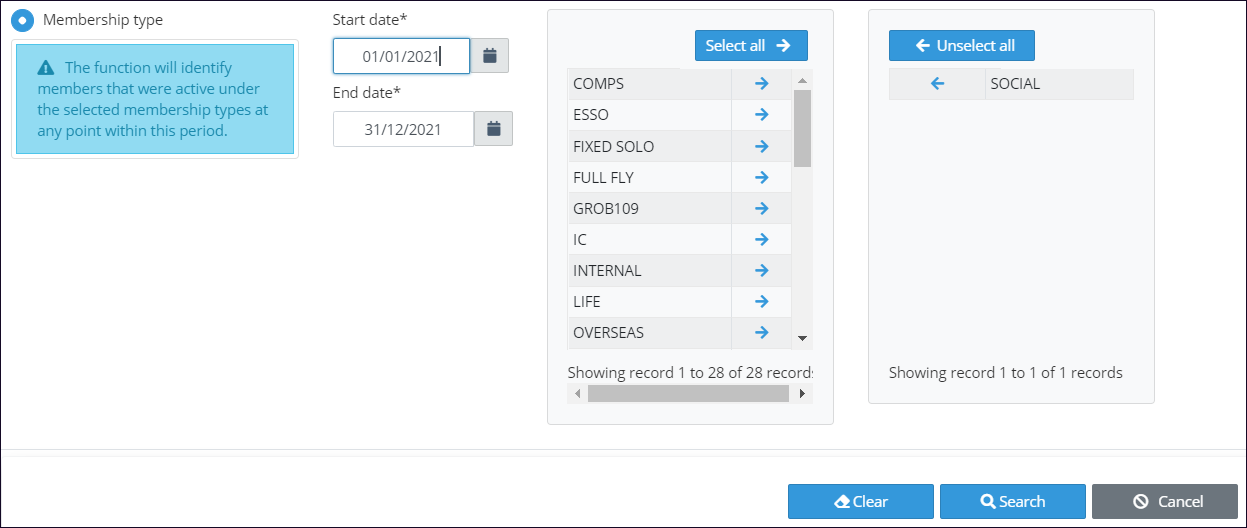
1. Selecting all Social members (membership type = Social)
- Press the Extended search button.
- Select the Membership tab.
- Select the option Membership type
- Click in the arrow in the left grid for each membership type you want to select. The selected type go to the right grid. Click in the arrow in the right grid for each membership you wish to remove from the selection.
- Click the Search button.
The result is shown in the Directory grid.
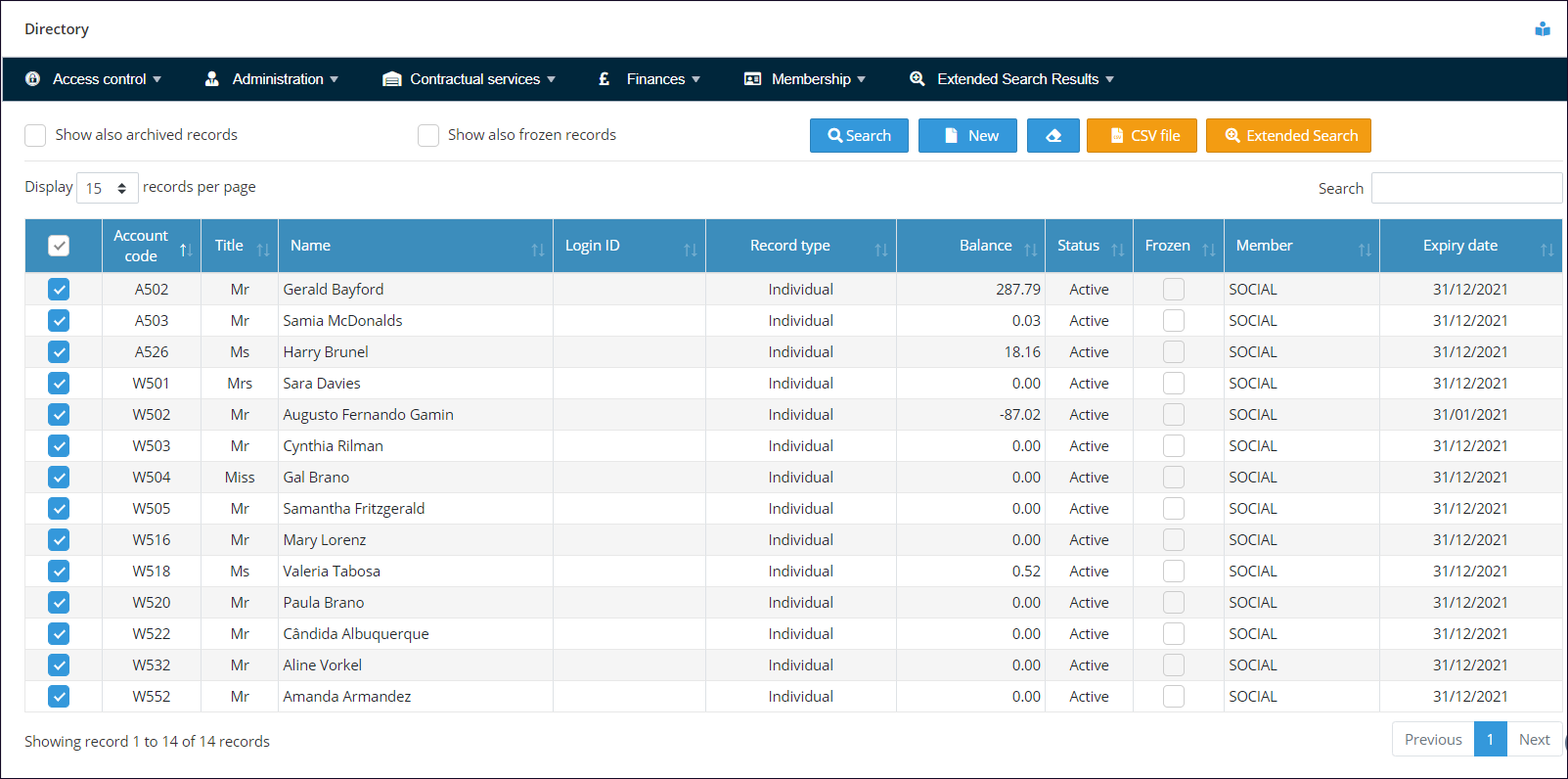
You can then use these selected records to send collective email or to perform any other operation on them.
2. …
- Text
Why Aerolog Cloud?